








How to Change the Online Card Connected to FACE CHECK-IN
-
The online card that appears after logging in via FACE CHECK-IN is the card set as your account's main card.
If you have multiple online cards registered to your account, you can change the online card connected to FACE CHECK-IN by changing the main card settings in the app.
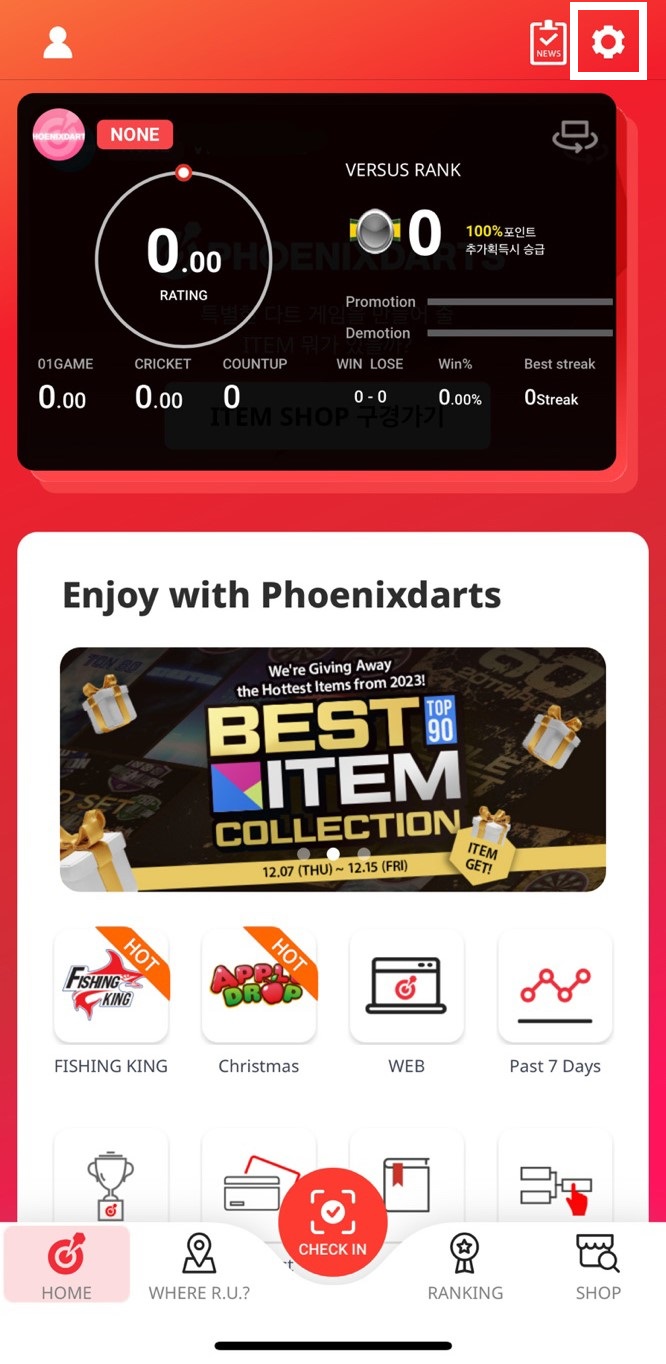
1. Click the Settings icon at the top of the screen on the App homepage
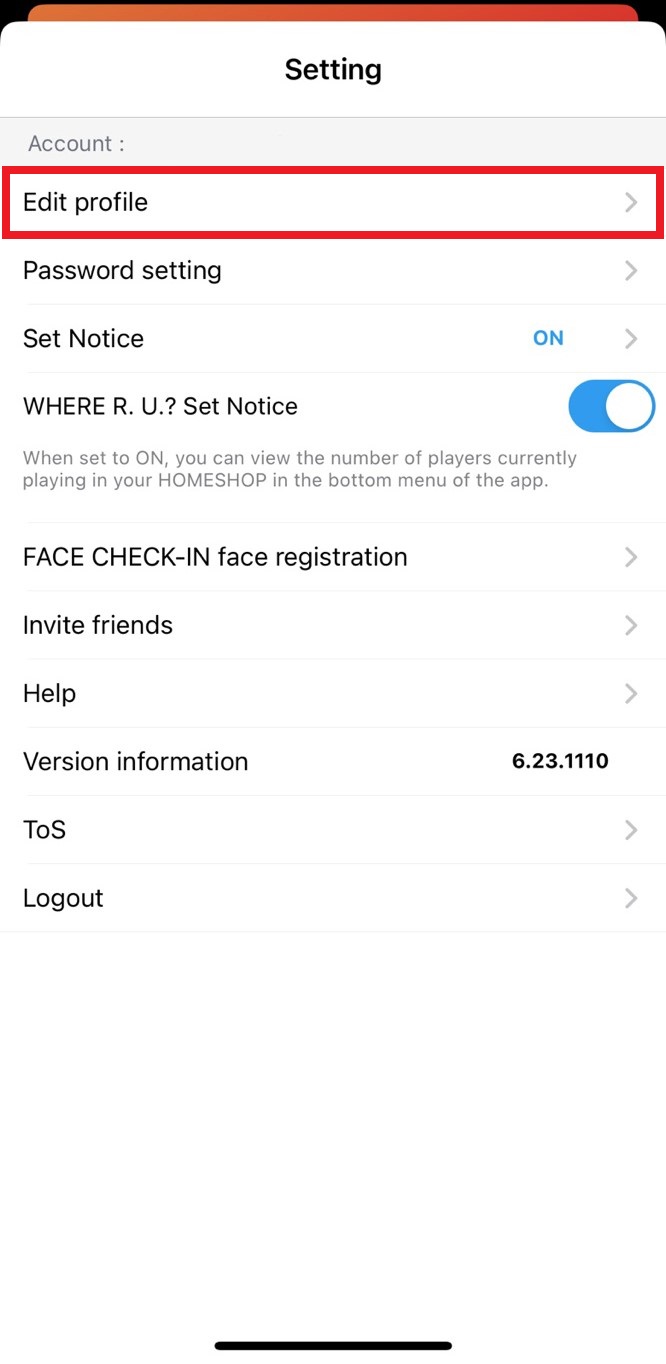
2. Click [Set Profile/Change]
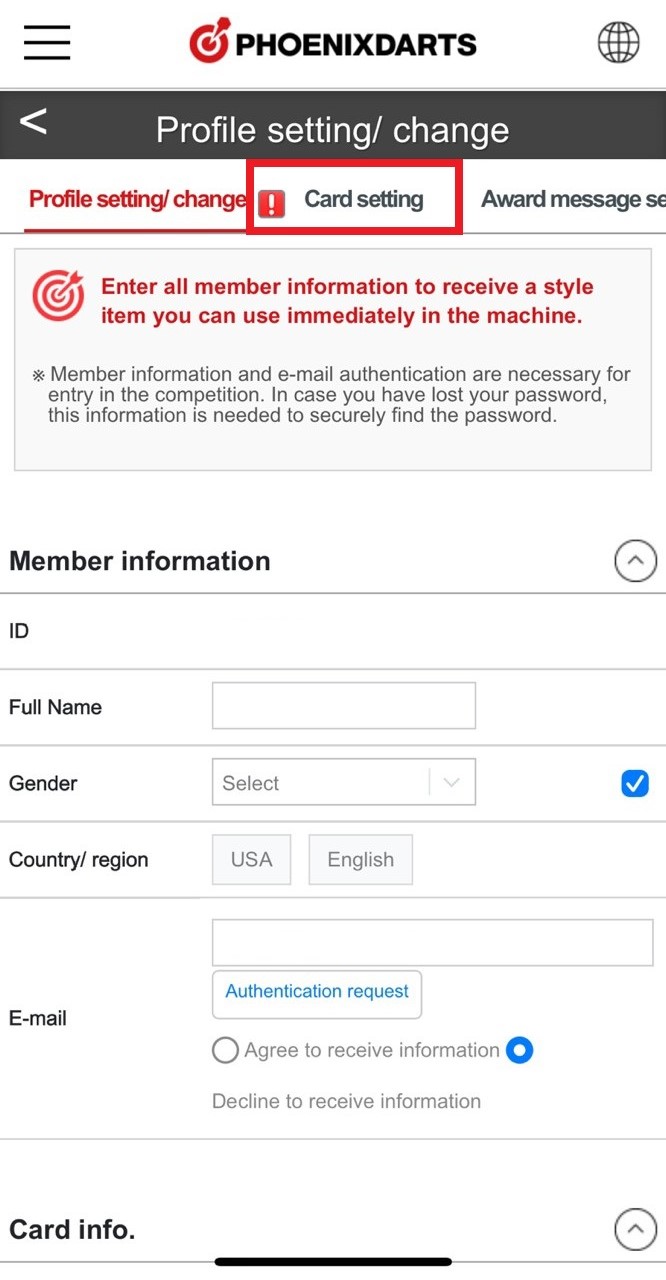
3. In the main menu of the Profile Settings/Change page, go to the Manage Cards tab.
4. In the Manage Cards tab, change the main card by touching the image of the card you would like to set as the new main card.
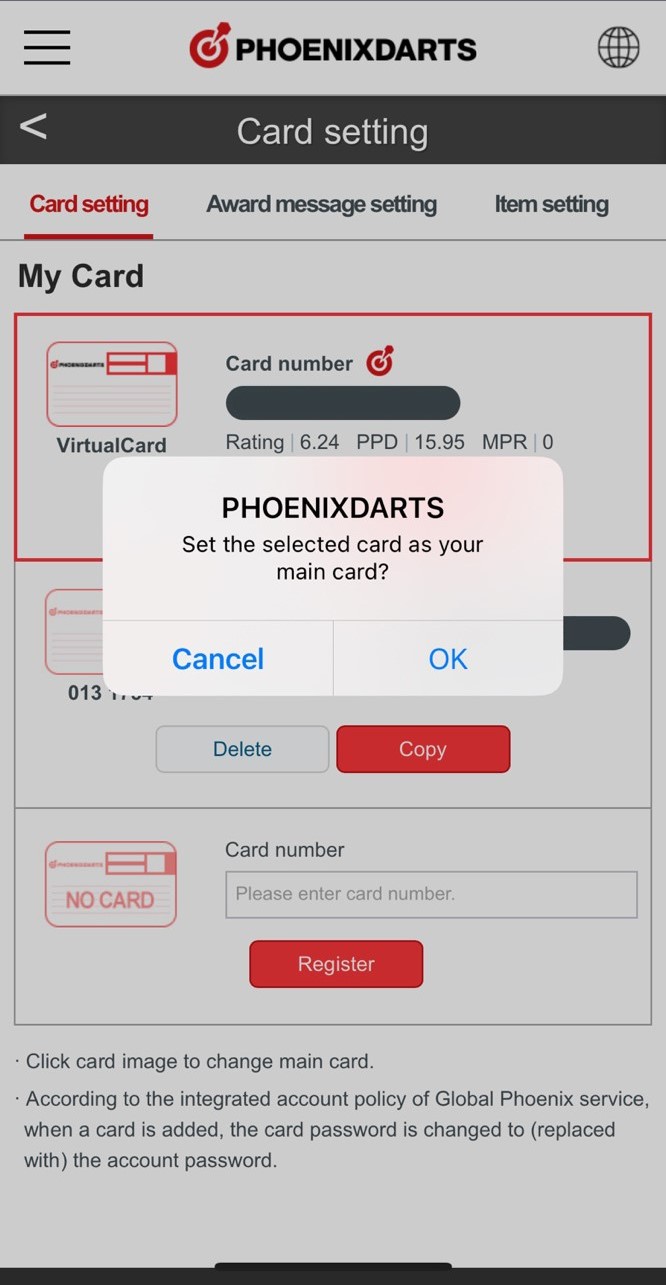
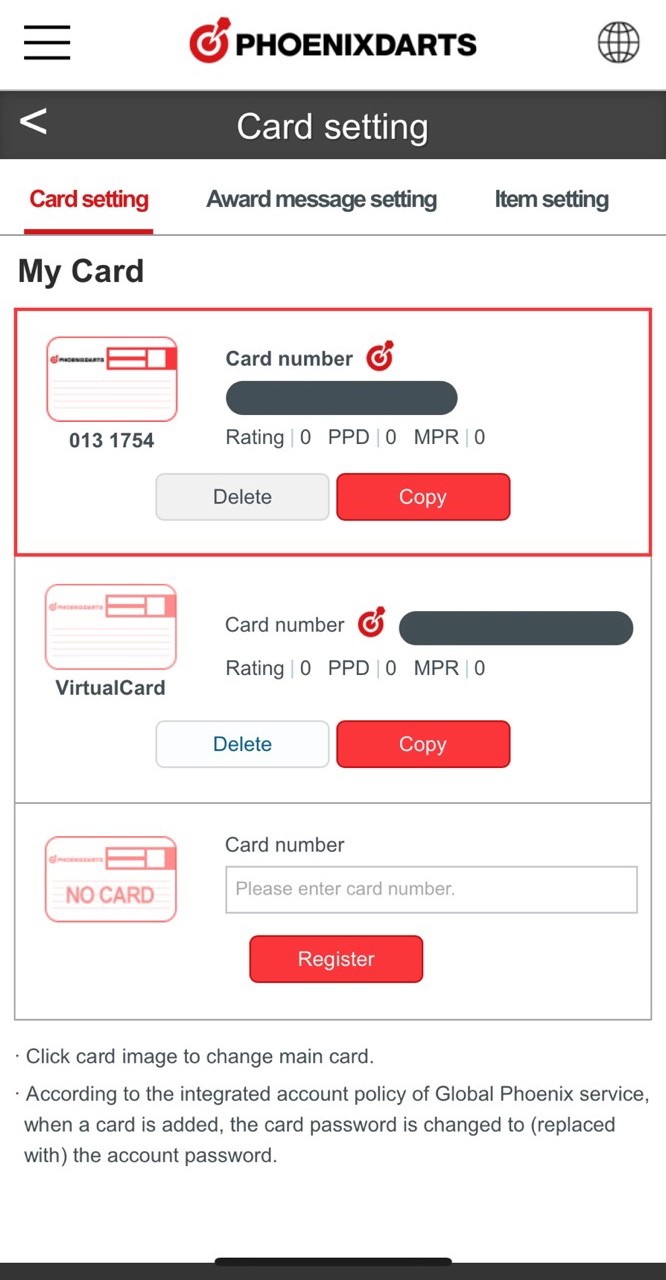
5. FACE CHECK-IN is now linked to the new main card.